IPTV Setup Guide 2026 – MNHSOLUTION | Install on Any Device in 5 Minutes
Complete Setup Guide 2026
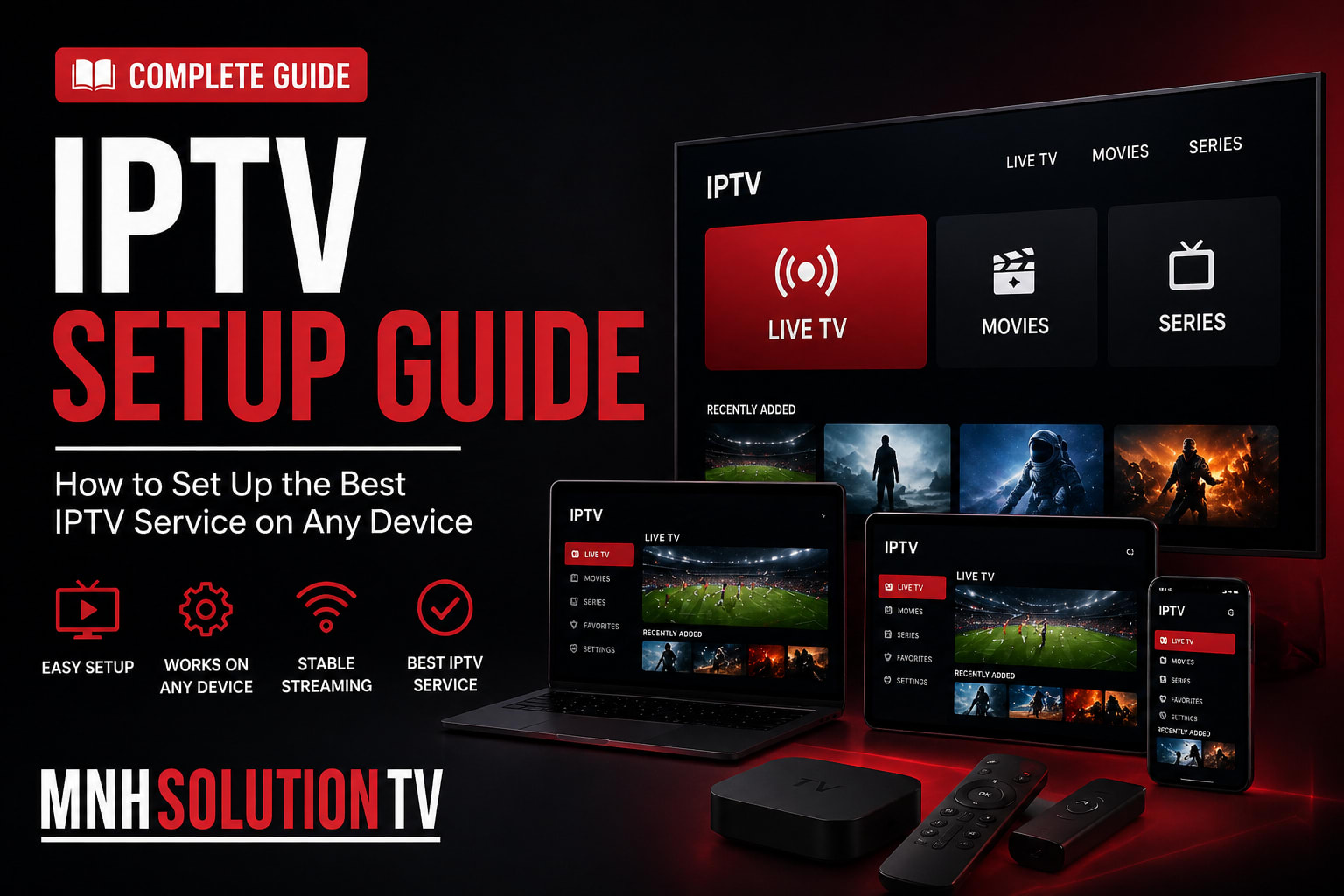
IPTV Setup Guide
Get your MNHSOLUTION IPTV subscription running on any device in under 5 minutes. No technical experience required.
How It Works — 4 Simple Steps
1
Choose Your Plan
Pick from 1, 3, 6 or 12 months. Select the number of devices you need.
2
Receive Credentials
Get your username, password and server URL via WhatsApp within 15 minutes.
3
Install an App
Download IPTV Smarters Pro or TiviMate — free, available on all devices.
4
Start Watching
Enter your credentials and enjoy 25,000+ channels instantly in 4K Ultra HD.
🔥
Fire TV Stick Setup
Works on all Fire TV Stick models — Lite, 4K, 4K Max, and Fire TV Cube.
Step 1 — Enable Unknown Sources REQUIRED
1
Go to Settings From the Fire TV home screen, navigate to Settings.
2
My Fire TV Select My Fire TV → Developer Options. If not visible, click your device name 7 times to unlock it.
3
Enable Apps from Unknown Sources Toggle this option to ON. This allows sideloading IPTV apps.
Step 2 — Install Downloader App
1
Search for Downloader Go to the search bar on your Fire TV home screen and type Downloader.
2
Install it Select the Downloader app (orange icon) and click Download → Open.
3
Allow permissions Grant storage permission when asked. This is needed to install IPTV apps.
Step 3 — Download IPTV Smarters Pro
1
Open Downloader In the URL field, type: https://www.iptvsmarters.com/smarters.apk
2
Download & Install Tap Go to download the APK. When done, tap Install.
3
Open the app Launch IPTV Smarters Pro from your apps or home screen.
Step 4 — Enter Your Credentials
1
Select Login Method Choose Login with Xtream Codes API.
2
Enter your details Fill in the Username, Password, and Server URL that MNHSOLUTION sent you via WhatsApp.
3
Click Add User Wait a few seconds while channels load. Then tap Live TV to start watching.
💡 Pro Tip: For best performance, connect your Fire TV Stick to Ethernet using an adapter. This eliminates buffering completely.
📺
Smart TV Setup
Compatible with Samsung, LG, Sony, Philips, TCL, and all Android TV models.
Samsung Smart TV
1
Open Smart Hub Press the Home button and go to the Apps section.
2
Search for IPTV app Search for Smart IPTV or IPTV Smarters and install it.
3
Note your MAC address Open the app — you’ll see your TV’s MAC address on screen.
4
Send MAC to MNHSOLUTION Share the MAC address via WhatsApp. We’ll activate it within minutes.
5
Restart and enjoy Reboot your TV, open the app, and your channels will be loaded.
LG Smart TV (webOS)
1
Open LG Content Store Navigate to your home screen and open the Content Store.
2
Search for app Search for IPTV Smarters Pro or NetIPTV.
3
Install and open Download and launch the app. Note your MAC address displayed on screen.
4
Activate via WhatsApp Send us your MAC address on WhatsApp and we’ll configure it instantly.
💡 Alternative: For LG & Samsung, you can also use an Amazon Fire Stick plugged into your HDMI port for a better experience with more app choices.
Android TV / Google TV
1
Open Google Play Store From your home screen or apps section.
2
Search & Install Download IPTV Smarters Pro or TiviMate directly from Play Store.
3
Enter credentials Open the app, select Xtream Codes API and enter your MNHSOLUTION username, password, and server URL.
4
Enjoy Browse your 25,000+ channels and start streaming in 4K.
Requirements
📶
Internet Speed
10+ Mbps HD 25+ Mbps 4K
📺
TV Model
2016 or newer Smart TV
🔌
Connection
Ethernet recommended for 4K
📱
Android Phone & Tablet
Works on all Android devices — phones, tablets, and Android TV boxes.
Setup with IPTV Smarters Pro RECOMMENDED
1
Download the app Open Google Play Store and search for IPTV Smarters Pro. Install it for free.
2
Open and select login method Launch the app. Tap Login with Xtream Codes API.
3
Enter your MNHSOLUTION credentials Input your Username, Password, and Server URL exactly as received via WhatsApp.
4
Tap Add User Wait for channels to load. Navigate to Live TV to browse all 25,000+ channels.
5
Optional — Enable EPG Go to settings and enable the Electronic Program Guide for a TV-like experience.
Alternative Method — M3U Playlist
1
Download GSE Smart IPTV Free on Google Play. Great for M3U playlist support.
2
Go to Remote Playlists Inside the app, tap Add Playlist → M3U URL.
3
Paste your M3U link Enter the M3U URL provided by MNHSOLUTION. Tap Add to confirm.
4
Browse channels Channels are organized by category. Tap any to start streaming.
💡 Tip: If you experience buffering on Wi-Fi, switch to mobile data or move closer to your router to test the connection quality.
🍎
iPhone & iPad Setup
Compatible with all iOS devices — iPhone, iPad, and Apple TV.
Setup with IPTV Smarters Pro RECOMMENDED
1
Open App Store On your iPhone or iPad, open the Apple App Store.
2
Search & Download Search for IPTV Smarters Player and install it. It’s free.
3
Select Login Method Open the app and choose Login with Xtream Codes API.
4
Enter credentials Type in your Username, Password, and Server URL from MNHSOLUTION.
5
Start streaming Tap Add User, wait for channels to sync, then tap Live TV to browse all channels.
Setup with GSE Smart IPTV
1
Install from App Store Search for GSE Smart IPTV — free download.
2
Add M3U playlist Tap the menu icon → Remote Playlists → Add Playlist.
3
Enter M3U URL Paste your M3U link provided by MNHSOLUTION, then tap Add.
4
Browse and stream Your channels are now organized and ready to watch.
💡 Apple TV Users: Use the Infuse app or IPTV Smarters for the best native Apple TV experience with Siri integration.
💻
Windows & Mac Setup
Stream on your laptop or desktop using our recommended PC/Mac applications.
VLC Media Player (Free) EASIEST
1
Download VLC Go to videolan.org and download VLC for Windows or Mac. It’s free and open source.
2
Open Network Stream In VLC, go to Media → Open Network Stream (Ctrl+N).
3
Enter your M3U URL Paste the M3U playlist URL that MNHSOLUTION provided you.
4
Click Play VLC will load your channels. Browse from the playlist panel on the side.
IPTV Smarters Pro for Windows
1
Download from Microsoft Store Search IPTV Smarters Pro in the Microsoft Store and install it.
2
Login with Xtream Codes Select Xtream Codes API and enter your MNHSOLUTION username, password, and server URL.
3
Browse all channels Full UI with EPG guide, favorites, and VOD — just like on a TV.
💡 Mac Users: Download IINA Player (free on Mac App Store) and open your M3U URL via File → Open URL for the best Mac experience.
🖥️
MAG Box Setup
Compatible with all MAG boxes — MAG 254, 256, 322, 324, 349, 351, 410, 420, and more.
Step-by-Step MAG Setup
1
Get your MAC address Power on your MAG box and note the MAC address shown on the setup screen. It’s usually printed on the box label too.
2
Send MAC to MNHSOLUTION Share your MAC address via WhatsApp to +44 7537 175588. We’ll activate it within minutes.
3
Receive your portal URL We’ll send you a Portal URL specifically configured for your MAG device.
4
Enter the portal On your MAG box, go to Settings → System Settings → Servers → Portals. Enter the Portal URL we provide.
5
Reboot and stream Restart your MAG box. It will load your channels automatically. Navigate using your remote.
💡 Important: MAG boxes must be connected to the internet via Ethernet cable for the best streaming performance. Wi-Fi can cause instability on MAG devices.
Requirements & Tips
🔌
Connection
Ethernet cable required
📶
Speed
Min. 20 Mbps recommended
🔄
Firmware
Keep firmware updated
💡 Stalker Portal: Some MAG boxes support Stalker Portal instead of a standard M3U. Contact us via WhatsApp and we’ll provide the correct configuration for your exact MAG model.
IPTV Players
Recommended IPTV Apps
Your MNHSOLUTION subscription works with all major IPTV players. Here are our top picks.
IPTV Smarters Pro TOP PICK
The most popular IPTV app worldwide. Supports Xtream Codes API, M3U playlists, built-in EPG, catch-up TV, VOD, and multi-profile support. Clean interface, works on every platform.
🔥 Fire Stick
📱 Android
🍎 iOS
💻 Windows
📺 Android TV
TiviMate
Premium experience designed for TV screens. Features multi-screen viewing, catch-up TV, favorites, parental controls, and a beautiful grid EPG guide. Best-in-class UI for serious IPTV users.
🔥 Fire Stick
📺 Android TV
📟 Android Box
GSE Smart IPTV
Excellent for handling large playlists and extensive VOD libraries. Supports M3U, Xtream Codes, and XMLTV EPG. Highly customizable with a clean mobile-first design.
📱 Android
🍎 iOS
🍎 Apple TV
VLC Media Player
Free and open-source. Perfect for desktop streaming via M3U URL. No account needed, just open your playlist and start watching. Supports all video formats without additional codecs.
💻 Windows
🍎 Mac
📱 Android
🍎 iOS
Perfect Player
Lightweight and fast IPTV player with a classic TV-style interface. Ideal for Android boxes and TV devices. Supports M3U and XMLTV EPG. Great for users who want simplicity.
📟 Android Box
📺 Android TV
Kodi (with PVR)
Powerful media center with IPTV support via the PVR IPTV Simple Client add-on. Highly customizable with skins, add-ons, and a full media library. Best for advanced users who want full control.
💻 Windows
🍎 Mac
📱 Android
🔥 Fire Stick
Common Issues
Troubleshooting Guide
Quick fixes for the most common IPTV issues. If problems persist, our 24/7 support team is always ready.
No Subscription Yet?
Get instant access to 25,000+ channels. Setup takes under 5 minutes on any device.